|
 |
Mellau Consulting
 |
 |
 |
 |
 |
 |
 |
 |
 |
Background
|
Using Symath SpectrumFit you can correct if necessary the background of your spectrum. If you want to analyze a spectrum with Symath SpectrumFit you must - in some cases - first correct the background of your spectrum, i.e. the background must be a straight line at 0.0 (emission type spectra) or 1.0 level (transmission type spectra). Fitting lineshapes in spectra with backgrounds that do not match the conditions stated above will have as result incorrect lineshape parameters as peak position, peak intensity, peak width etc... . The best choice to solve such background problems is always to make some modifications at the spectroscopic instrument or associated experimental set up until spectra with correct background can be measured. In some cases one can do a very successfully a background correction with the software associated to the spectroscopic instrument. Such case is the correction of FT-IR single beam spectra in the interferogram domain. In some cases is this not possible - or it is possible only to some extent - and the background is far away to be a perfect line at 1.0 or 0.0 y axis level. The Symath background correction system can help you to do a background correction for such spectra. In some cases the background correction can be always done. First it is necessary that the theoretical lineshape match perfectly the lineshapes measured in the spectra. Second condition for a perfect background correction is that the spectrum is sparse, the lines are resolved and do not overlap each other. The third condition is that the background shape is changing slowly compared with the lineshape width. For such spectra ( i.e. perfect lineshape, sparse spectra, slowly changing background shape ) you can do a perfect background correction using the Symath Background Correction System. Sure, you can try to use the background correction procedures for any spectra, the general rule is that an imperfect background correction is better as none. Figure 1 shows a typical transmission spectrum with an undulating background. In this section we will use a transmission spectrum as example but the same works with any spectrum ( as emission spectrum etc... in which case the correction yields a 0.0 line as background ). To use the Symath background correction system and in principle to be able to correct a background without having a precise knowledge about the form of the correction to be applied the spectrum must be sparse and the changing in the background must be slow. The spectrum shown has only a few peaks and the background undulates with a frequency much lower as the lineshape width. One really sees where the background line is. The trick of the background correction is that we create a data list where this imaginary line would be present and correct the background with it. The background system is shown on a PlotWindow if it switched On in the Visual system section. If the user switches the background system on ( a PlotWindow must be created before switching the background system On) some additional user interface elements will be created on the plot window.
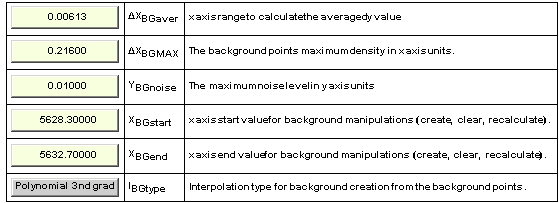
Figure 1. Typical transmission spectrum that needs background correction. The spectrum satisfies the conditions in which case the background correction can be done.(File SpectrumFitDemo6.pek) The figure 2 shows the table with background creation parameters. The parameters shown on this table must be edited before a background can be created. Also some processing buttons are drawn on the notebook, you have to click these buttons to start the background creation. The processing buttons are shown and explained in the glossary section of this chapter where each button of the background system is explained. Figure 2. The parameters which the user has to set up for the background correction The basic concept of the background correction is the creation of so called background points. The background points are a simple collection of points which are
placed on the spectrum background. In ideal case they are placed only at places where no peaks are present and at positions that are just in the middle of the
present noise. After the background points are created they are simply joined by Symath i.e. a background spectrum is calculated using these points. You can let
Symath to show you the background points and the background calculated from the background points on the plot window. 4 background points are by default
created always by the first start of the background system and a default background is also set up as shown in figure 7.1 Now you can ask Symath to search for background points by clicking the button
Figure 3. The background created with the help of the background points shown.
Figure 4. The background created after the peaks were found. The peak parameters found are not quite correct but the background points could be much more precise detected. You can see that the result is not wrong but is far away from to be acceptable. The basic problem is that the program cant know exactly where the small peaks
are. It must make sure that no background points are inserted where peaks are present. The solution is to make first a PeakSearch and a PeakFit with the
uncorrected background.The PeakSearch parameters must be set so that the sensitivity is above the background undulation level, for the spectrum shown on figure
7.3 the sensitivity values used are 100 and 0.003. Also the density of background points was in this example too low so that the background points density
parameter must be also changed from 0.21 to say 0.05. This parameter defines how dense the background points are inserted. Finally we can redo the background creation by clicking the
Figure 5. The background corrected spectrum .
Now you can redo the fit of the peak positions. You will get a list of better peak positions and intensity parameters. Also you will be able to redo the PeakSearch
procedure with a better sensitivity and so you will be able to identify peaks that in the first search couldn't be identified. Now you can redo also the creation of the
background - the background is always created from the initially measured spectrum using the peaklist created using the already background corrected fit
spectrum. So you will get a better list of background points, the program knows now during the automatic background point search the position of some new
peaks. Finally you can create a new, better fit spectrum. In this ways you can do a perfect background correction, usually looping 2-3 through this procedure. In
the example shown on 7.5 the background correction was unfavorable for the last undetected peak and couldn't be found through automatic PeakSearch. Now we
want to demonstrate how you can do a manually background correction and analyze this last undetected peak. One of the very important features of the
background correction system is that is range additive : you can redo the background correction for any small portion of the spectrum without changing the results
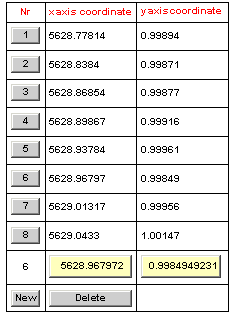
of the background correction already done outside the region. To demonstrate this we will now select a spectrum region around this small peak and display the list of background points clicking the button Figure 6. The list of background points The portion of the spectrum corresponding to the region selected for the background points is shown on the figure 7.7 A very useful feature of this system is that you can navigate through your spectrum, at each x range change the background points table is rewritten with the points currently shown on the plot window. In this manner you can check the background points very easy over large regions and edit only the background points that aren't at correct positions.
Figure 7. The region of the spectrum to be corrected manually through editing the background points Now the user can delete/insert background points or shift their x or y positions. If for this section this is done ( remove 2 bad points and insert 3-4 new one to the correct positions ) and the background correction is redone the spectrum will look as shown on the figure 7.8
Figure 8. The manually corrected background spectrum through editing the background points In this section you learned the basic concepts of the Symath background correction system. The idea is to search for peak-free portions of the spectrum and mark these portions with a point. The points are inserted with an user defined density. The y position of the inserted background points is determined by averaging over an user defined x range. Also the mean noise can be user defined, the background point search procedure will use this value for detection of portions of the spectrum where peaks are present and no points should be inserted. If enough background points can be collected and the background points are at correct positions, using an interpolation function a simulated background can be created. Finally using this simulated background a corrected fit spectrum can be calculated which can be used for further data analysis. Symath saves in the *.pek database the original uncorrected spectrum and allows so the iterative background creation. There are also 3 spectra simultaneously defined over the complete x axis range : measured input spectrum ( blue curve on the figures ), corrected fit spectrum ( black curve on the figures ) and the background correction curve ( red curve on the figures ).
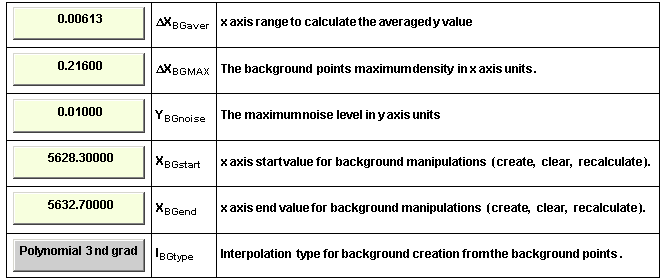
"Background Parameters" table To use the background correction system you have to set up some parameters. The table where you have to set up the background correction parameters is shown on the next figure.
The following section contains for each parameter button a brief explanation. A brief description on the background correction method itself can be found in the How it works section of this chapter.
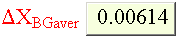
This parameter is the x axis range used to calculate the background point y axis position. To calculate the y axis position for a background point Symath will average the y axis data points over an x axis range given by this parameter. The value found is than the y axis value for the new background point. In most cases this value should be less than the width of the peaks. The best value for this parameter can be found by testing different values on a typical portion of the spectrum. You must also realize that the effect of this parameter on the background point creation is correlated with other parameter values.
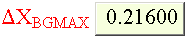
This parameter is the x range value that defines how dense the background points are created. Symath will create background points that are separated by this parameter value. This value is the maximum density of the background points at portions of the spectra without peaks. At some spectrum regions with dense peaks the effective density could be much lower. For very dense spectra it can happen that only a few background points are created at the few spectrum positions where no peaks are present. This is the basic feature of this background correction system, the correct search for peak-free regions of the spectra.
This parameter gives the y axis noise level in absolute y axis value. To eneter this parameter you have to calculate on a peak-free portion of the spectrum the peak to peak noise level of the spectrum. This parameter is used to guess the presence of peaks in the spectrum. The effect of this parameter on the background point creation is correlated with other parameter values.
This parameter defines the x axis value from which the background manipulations are started. All background manipulation functions are range sensitive and additive, i.e. you can do the manipulations only in a selected x axis range with preserving the results outside the selected range. For example you can select a small spectrum range, delete all background points inside this region, insert some other background points, recreate the background curve and correct the measured spectrum background in this region. A very useful feature of this input button is that it autoscales, if you enter a value lower as the spectrum first point x axis value the parameter value is automatically set to the spectrum x axis start value. If you want to set this parameter to the spectrum x axis start value you have to enter any value which is less as the spectrum first data point x axis value.
This parameter defines the end x axis value until which the background manipulations are done. All background manipulation functions are range sensitive and additive, i.e. you can do the manipulations only in a selected x axis range with preserving the results outside the selected range. For example you can select a small spectrum range, delete all background points inside this region, insert some other background points, recreate the background curve and correct the measured spectrum background in this region. A very useful feature of this input button is that it autoscales, if you enter a value higher as the spectrum last point x axis value the input value is automatically set to the spectrum end x axis value. So if you want to set this parameter to the spectrum x axis end you have to enter any value which is grater as the spectrum last data point x axis value.
Clicking this button you can select the method used to connect the background points to a smooth curve. The current method selected is drawn on the button itself. The current interpolation types implemented in this program version are : Polynomial 1st grad, Polynomial 2nd grad, Polynomial 3nd grad
Background correction processing buttons To process the selected spectrum with the background correction procedures a set of processing buttons are shown on the Plot window. The next figure shows the processing buttons of the background correction system. The following section contains for each processing button a brief explanation. A brief description on the background correction methods itself can be found in the How it works section of this chapter.
Click this button to search for new background points. This is the most important procedure of the background correction system. The procedure loops over the spectrum data points in the selected x axis range and inserts new background points at density defined by the background points density user defined parameter. Already present points are not altered, if you have already a set of background points at a density of 1 and you change the density parameter to 0.5 a single new data point will be inserted between each two already present background points. This procedure uses all parameters defined in the background correction system. When the procedure finished with the insertion of data points the PlotWindow is updated with the all the background points now present in the selected spectrum range. If the table with the background points is switched On this table is also automatically redrawn.
Click this button to calculate a new fit spectrum with the actual background correction curve, i.e. this is the background correction procedure itself. The measured spectrum - the initial input spectrum - is saved in the *.pek spectrum database file and is used any time you perform the background correction. The result of the background correction is the spectrum which you use for further data analysis. For transmission spectra the background is corrected through division of the measured spectrum with the background curve, for all other spectrum types through subtraction. You can use this procedure for any selected spectrum region, only in the selected spectrum region the fit spectrum will be recalculated. When the procedure finished with the background correction the PlotWindow is updated with the new fit spectrum ( balck curve ) in the selected spectrum range.
Click this button to recalculate the background by connecting the background points together using the selected interpolation method. You can use this procedure for any selected spectrum region, only in the selected spectrum region the background curve is recalculated. When the procedure finished with the background curve creation the PlotWindow is updated with the new background curve ( red curve ) in the selected spectrum range.
Click this button to clear the background. All background points in the selected x axis range will be deleted. You can use this procedure for any selected spectrum region, only the background points in the selected spectrum region will be deleted. If you set the background correction x axis region to the x axis region of the spectrum you can delete all background points. The first 2 and last 2 background points created automatically will not be deleted, they cant be deleted with any procedure. This procedure is useful also in the first phase of the background correction where you have to found out which of the background creation parameters ( background points density, noise level, averaging distance ) are the best for your spectrum. You can create the background points, inspect them on the Plot window, delete the points, change the parameters, create again the background points, inspect the background points created with the changed background creation parameters etc... until you found a set of parameters which result in the best set of background points.
Click this button to switch between the show and don't show status of the background points table. The current status is drawn on the button itself. If the status is show, a table with the background points is drawn on the plot window. In this table you can select a background point and edit the background point position x and y axis coordinates.
If you click this button a help table is drawn on the Plot window. This help system is not as descriptive as the program manual but can be used effectively if the user wants a concise information about some user interface element.
Background points table If you want to do manual corrections to the automatically created background you can switch the background points list On. Here you can edit the for each background point the position coordinates and insert/delete selected background points as shown on the next figure :
The following section contains for each button and header element of the background points table a brief explanation. A brief description on the manual modus of the background correction system can be found in the How it works section of this chapter.
In this column the counting number of the background points are shown. The numbers are shown on a button. clicking this button you can select the background point for which you clicked the numbering button. The selected background point is drawn on the last row of the background points table and its position x and y axis coordinates can be edited.
In this column the background point position x axis coordinate values are drawn. On the last row the selected background point x axis coordinate value is repeated on an editable user input button.
In this column the background point position y axis coordinate values are drawn. On the last row the selected background point y axis coordinate value is repeated on an editable input button.
On this button the current point number is displayed relative to the selected x axis range. clicking this button you can select the background point for which you clicked the numbering button. The selected background point is drawn on the last row of the background points table and its position x and y axis coordinates can be edited.
On this edit button you can change the background point x axis coordinate value. Change the numeric value and click with the mouse the button. The PlotWindow will be automatically updated and the background point will be shown at the new position.
On this edit button you can change change the background point y axis coordinate value. Change the numeric value and click with the mouse the button. The PlotWindow will be automatically updated and the background point will be shown at the new position.
If you click this button a new background point will be inserted AFTER the selected background point but BEFORE the next background point to the selected one. The new background point is inserted on the halfway distance between these two points. The position of the new background point is calculated interpolating through the present background points. The PlotWindow will be automatically updated and the new background point will be shown.
Click this button to delete the selected background point. Only the background point shown in the last edit row of the table is deleted. The PlotWindow will be automatically updated and the background points will be shown, now without the deleted point.
Application Notes In this manual - especially in further editions of it- I will try to gather some application results, hints and references related to background correction. If you have any suggestion or application example don't hesitate to contact me at georg@mellau.de. Each major spectroscopic technique has its subsection- but you should eventually inspect all subsections if you are trying to solve some problem. Fourier-Transform Spectroscopy Very often in the spectra measured in the FT-Spectroscopy do not have the desired perfect background - a perfect line at 1.0 or 0.0 y axis level. For transmission spectra there is a difference on the single -beam spectrum measured with the empty cell respective with cell containing the substance we want measure. Many times the gross of single beam spectra is constant, only a sinusoidal type undulation - called fringing in the FT-Spectroscopic nomenclature - is changing between the empty cell measurement and the measurement with the cell filled with the probe. The best way to solve this problem is to try to align the spectrometer optical components so that the fringing cant be observed - and so get perfect transmission spectra. This is not always possible and so some fringing must be tolerated. The fringing itself would not cause any problem if the undulations frequency and phase would be perfectly constant during the measurement. But this is mostly not true so that the transmission spectrum will contain the difference signal between the different undulations of the background and sample single beam spectra. To correct this problem one needs to change the undulations of the spectrum measured with empty cell. This can be done very easy - and very efficiently - in the interferogram domain as described in Reference 1. Anyway if this not possible or only to some extent you can try the further correction with the Symath background correction system. © 2007 Dr.Georg Ch. Mellau |
![[Graphics:HTMLFiles/index_1.gif]](../../HTMLFiles/index_119.gif)
 and than let Symath to interpolate for you a background. The result is shown on
figure 3
and than let Symath to interpolate for you a background. The result is shown on
figure 3 ![[Graphics:HTMLFiles/index_4.gif]](../../HTMLFiles/index_414.gif)
![[Graphics:HTMLFiles/index_5.gif]](../../HTMLFiles/index_513.gif)
 button. This procedure creates only the background points, the background itself is created by
clicking the
button. This procedure creates only the background points, the background itself is created by
clicking the button. The result of these calculations is shown on the figure 7.4 . As you can observe the 3-th ( very weak ) peak couldn't
be detected by the PeakSearch procedure and the a background point was created just at the peak. In all other regions of the spectrum the background looks very
well. Now you have the possibility to correct this error by directly accessing the list of the background points. You can switch off a table showing all background
points in the region of the spectrum shown on the PlotWindow and Insert/Delete background points, adjust the x/y position of the background points etc. This is
practicable if the spectrum region to be analyzed is small and also the number of bad background points is small. Anyway there is another way to increase the
quality of the created background and of the peakfit. For this we accept the created background and we create a new fit spectrum. Usually, as long you do not
need to do a background correction there is a single spectrum data set in the *.pek database, called the spectrum or fit spectrum. Before you do your first
background correction this spectrum is copied to another position in the *.pek database called Measured spectrum. This data set is never changed, it contains the
spectrum initially imported into Symath. Now if you do a background correction by clicking the
button. The result of these calculations is shown on the figure 7.4 . As you can observe the 3-th ( very weak ) peak couldn't
be detected by the PeakSearch procedure and the a background point was created just at the peak. In all other regions of the spectrum the background looks very
well. Now you have the possibility to correct this error by directly accessing the list of the background points. You can switch off a table showing all background
points in the region of the spectrum shown on the PlotWindow and Insert/Delete background points, adjust the x/y position of the background points etc. This is
practicable if the spectrum region to be analyzed is small and also the number of bad background points is small. Anyway there is another way to increase the
quality of the created background and of the peakfit. For this we accept the created background and we create a new fit spectrum. Usually, as long you do not
need to do a background correction there is a single spectrum data set in the *.pek database, called the spectrum or fit spectrum. Before you do your first
background correction this spectrum is copied to another position in the *.pek database called Measured spectrum. This data set is never changed, it contains the
spectrum initially imported into Symath. Now if you do a background correction by clicking the button a new spectrum is created from the
measured spectrum and background spectrum. This correction can be any time redone because the initial spectrum is always accessible. The spectrum created by this procedure is shown on figure 7.5 .
button a new spectrum is created from the
measured spectrum and background spectrum. This correction can be any time redone because the initial spectrum is always accessible. The spectrum created by this procedure is shown on figure 7.5 .![[Graphics:HTMLFiles/index_9.gif]](../../HTMLFiles/index_913.gif)
 . Symath will show a table as shown on the figure 6 .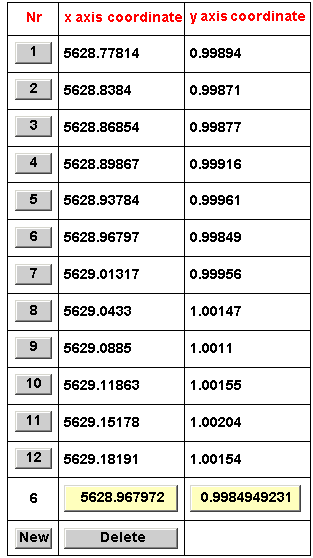
![[Graphics:HTMLFiles/index_12.gif]](../../HTMLFiles/index_126.gif)
![[Graphics:HTMLFiles/index_13.gif]](../../HTMLFiles/index_136.gif)