|
 |
Mellau Consulting
 |
 |
 |
 |
 |
 |
 |
 |
 |
Fit
|
|
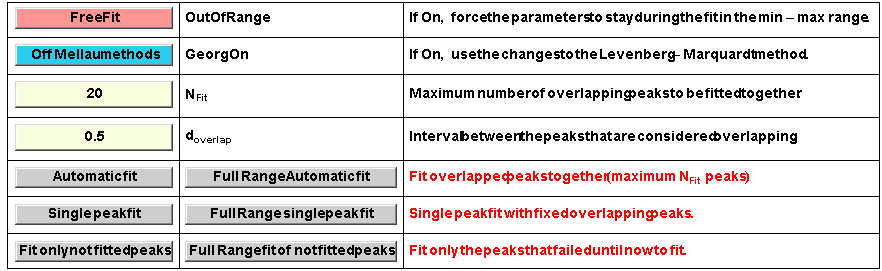
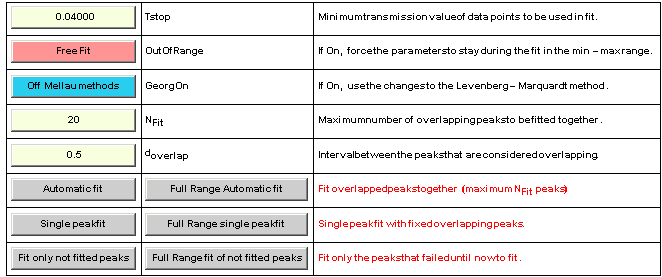
The basic task of the Symath SpectrumFit software is the fitting of spectrum peaks to user defined lineshapes. To do this task a lot of additional modules are needed as the search for peaks, background correction, data display etc. The additional modules are explained in other sections of this manual, to understand all aspects of the "PeakFit" system you have to read also the manual sections about these additional modules. Some user interface elements - PlotArea, PlotManager and PeaklistTable - used in the manual fit system are described in the SymathUserInterface manual. This section presents first the automatic fit routines in which the program fits from a starting x axis coordinate value the peaks one after another completely automatic until it reaches an end x axis coordinate value. In the "PeakFit" section of SpectrumFit there are two different types of automatic fitting procedures. The first type of automatic fit procedures will do the fit for peaks present in an x axis range that the user has to define on the AnalysisSetUp table. The second type of fitting procedure is where the complete spectrum with all peaks is automatically fitted using the currently defined fit parameters and settings, i.e. the start and end x value for the fit is automatically set to the spectrum x axis range. Finally the manual fit mode is explained where the user has to select a small region of the spectrum. In the selected region the user can fit ALL peaks together with a single mouse click. The spectrum and the list of peaks to be fitted are shown in a window, the user can control any aspect of the fit procedure and check the results of the fit. The user has also an interactive control on the peaks present in the region i.e. he can insert/delete peaks. In the manual fitting mode the user can also browse interactively through the spectrum using the PlotManager table. The documentation about the SpectrumFit FitEngine - the central fit routine of this program - and the very laborious fit process diagnostic system called FitStatusWindow is not included in this manual. The analysis of simple spectra is very easy using Symath SpectrumFit : one can search and fit all peaks of a spectrum only with 2 mouse clicks : One click to search for peaks - in which also the first estimates of peak parameters used as start parameters for the fit are set up - and one click to fit the peaks. This works fine for well resolved spectra and where the theoretical lineshapes matches the experimental ones. SpectrumFit makes also possible to analyze very complicated spectra which until now could not be analyzed using a lineshape fitting procedure. Symath SpectrumFit is the only spectrum analysis software which can be used to fit spectra with more than 20000 overlapping peaks. The basic fit parameters and fit execution buttons are displayed in a table as shown on figure 6.1 .
Figure 1. The fit parameters and calculation buttons.
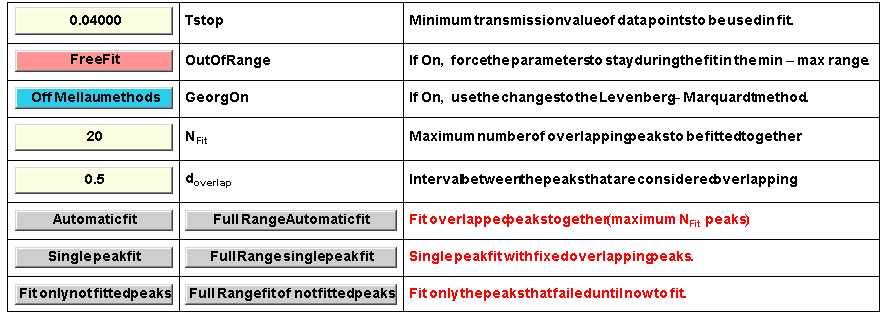
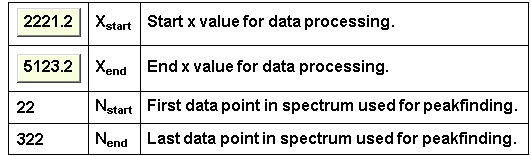
Figure 2. The fit parameters and processing buttons in the case of a transmission spectrum. If the selected spectrum database file is a transmission file some additional parameters are present as shown in the figure 2 . Before starting the fit procedure you must have selected the lineshape, edited the lineshape min,max and average parameters, found the peaks using the search for peaks procedures (as described in the PeakSearch section ). Before starting the fit procedure you can change the parameters shown on the table shown in figure 1 or figure 2 . Now you can fit using the fit procedures the complete spectrum or in some user defined range. Symath will fit all selected peaks in the range. Peaks that could be successfully fitted are marked as adjusted. Symath will do an automatic bookkeeping about which peak could be fitted and which not. After the fit is finished the PeaklistStatus table is automatically updated. On the PeaklistStatus table the user can get a quick info how well the fit procedure succeeds as shown on the figure 3 . Figure 3. The PeaklistStatus table with the information about the peaklist fit. If the fit is not forced to remain in the min-max range some peak parameters can grow during the fit to very bad ( too high or too low ) values. If such bad peaks are present in the spectrum the value shown in the PeaklistStatus table will be meaningless. In such cases you can use the bad peaks utility to delete these peaks from the database. If the user wants to fit the peaklist only in a given x axis range it can set up a fit range on the AnalysisSetUp table as shown on the figure 4 . Figure 4. The AnalysisSetUp table with the selected fit range. To demonstrate how the fit procedure works a portion of the demo spectra is shown on the figure 6.5 with peaks found using the PeakSearch system. As you can observe the Peaksearch procedure can determine without fit an excellent guess for the lineshape parameters even if the peaks overlap. It is not easy to see the difference between the predicted spectrum ( red curve ) and the measured one ( black curve ) so that the difference error curve ( blue curve) is shown magnified by factor 5.
Figure 5. Portion of the demo spectrum with detected peaks. Now if you click the button
Figure 6. The result of the automatic fit procedure started just after the PeakSearch procedure. How you can observe the difference between the predicted curve and measured one is much less as before the fit but far away from being perfect. The difference
results as effect of two major problems that arise when one tries to fit spectra with overlapping peaks : The first problem is that - at least at first sight - the line width
cant be fitted and must be fixed to a preselected value. The second problem is that the PeakSearch system will never found all overlapping peaks. Symath is the
worldwide unique software that allows you to solve BOTH of these problems in analyzing complicated spectra with overlapping peaks. The methods were
developed by Georg Mellau and consists in the consecutive run of different Symath procedures. We will continue the analysis of the shown spectrum region using
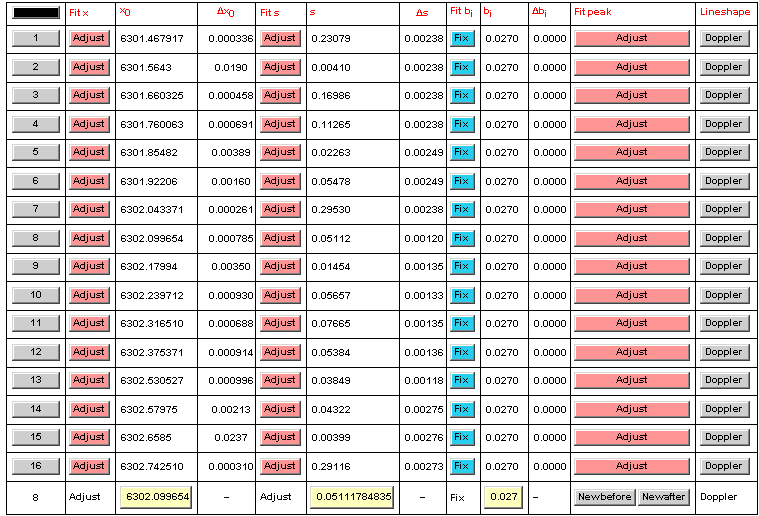
the manual fitting method. For manual analysis you have to click the Figure 7. Manual fit processing buttons shown on the PlotWindow. Also the PeakListTable is drawn on the PlotWindow with the peaks currently selected as shown in the figure 6.7 . Figure 8. PeakListTable shown in the manual fit mode. A brief description of the PeakListTable user interface element can be found in the general SymathUserInterface manual. For the discussion here is important to
repeat that on this table for each peak shown on the PlotWindow a table row can be found. On each row a column entry for all lineshape parameters with the
parameter value and error can be found. For each peak and each lineshape parameter an user switchable Fix/Adjust button is shown. If the user clicks the
numbering button of a peak the peak will be marked as selected. The selected peak is shown in the last row. The peak parameter values of the selected peak can
be edited manually, the changes are shown interactively on the plot window. Using this table you can do any "manual optimization", change manually the number of
peaks ( insert/delete peaks ), change the lineshape formula, change the parameter values until the blue error curve is only a zero line. Using the button
Figure 9. PeakListTable with the end result of the analysis. As you can see now there are 3 additional peaks inserted manually by the user and the line width parameter for 4 peaks is set to Adjust. Also for each peak and each fitted lineshape parameter the parameter value and error are changed. The result of the fit is shown on the figure 10 . As you can observe the fit is almost perfect ( error curve is shown magnified with factor 5 ). Sure such manually fitting is very nice and very effective. The fit itself needs for the shown example only some seconds but if the the user has to do a visual check, to insert or to delete peaks to switch parameters on/off such a manual fit will take at least 3 minutes for the shown 15 peaks. If the spectra contains 20.000 peaks than one needs to work for 66 hours to complete such an interactive fit of a single spectra. Normally this method should be used only for spectra with less than 1000 peaks or for a final check of an automated analysis. The task of Symath user should be to achieve results comparable with that shown on the figure 10 without manually fitting, i.e. only using the automatic procedures that manipulate the complete spectra from the first peak until the last peak completely automatic. The solution for such an analysis is the iterative call of the automatic processing functions as PeakSearch, SpectrumFit, SingleLineFit etc... . I implemented in the very first version of Symath such procedures but finally I deleted them from Symath. I realized after the analysis of the first spectra that for an optimum analysis each spectra needs another strategy and its better to allow the user to mix its own cocktail of procedures. In a separate section you will learn how to use Symath for the automated analysis of very dense high resolution spectra.
Figure 10. The result of the peak fitting.
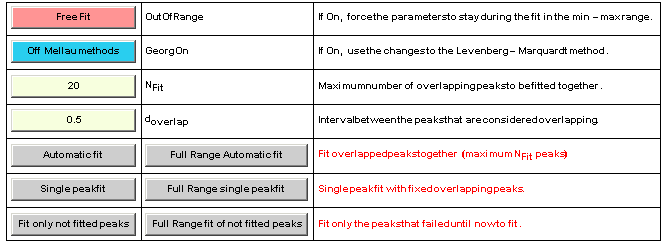
"PeakFit" section Using the procedures in the "PeakFit" section you can fit the peaks in the spectrum. The fit parameters and processing buttons are shown on the SymathWorkSheet in a table as shown on the next figure.
In the case of transmission files the table is drawn with additional parameters as shown on the next figure.
In the next section there is a description for each fit parameter and processing button of the "PeakFit" system.
Click this button to switch the fit procedures in a fitting mode in which during the fit the parameters are forced to stay in the min-max range. If you use this fitting mode you have to set very carefully the min-max attributes of the lineshapes used in the fit. In the fixed fitting mode if there is no minimum where the fit could converge than the fit will fail. If you observe that the fit very often fails you have to change the min and max attributes. An alternative strategy to the forced fit - in most cases also more effective - is to use the free fit and after each complete fit of the spectrum to delete the peaks that are out of the min-max range using the Bad peaks utility. Using this strategy you have - in some cases - to insert new peaks in the spectrum using the Insert utility and than redo the fit. In the forced mode you can make sure that all peaks will fit only to physically acceptable values and none of the peaks will fit to a bad peak but the fit can fail much more often.
Click this switch on to allow the use of special extensions developed by Georg Mellau to the general Levenberg-Marquardt fitting method. This button should be switched On if the fit converges but too slow.
Type on this button the maximum number of peaks that are to be fitted together in an automatic fit. If Symath detects more overlapping peaks as selected through this parameter only the first part of peaks from the overlapping group will be fitted together, in the following fit the second part of the overlapping group and so until all peaks are fitted. Of course, the spectrum portions between the fitted parts of the spectrum will be only approximately fitted. If in your spectra practically all peaks are overlapping you have to start the fit procedure 2-3 times with different maximum number of overlapping peaks parameter value. Than in each run practically other set of peaks will be fitted together.
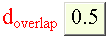
Edit on this field the multiplicand which gives how close two peaks must lie so that Symath considers them overlapping. This parameter value times the fitrange ( also named lineshape range ) parameter gives in x axis coordinate units the minimum distance to which two peaks must lie so that Symath considers them overlapping and fits them together.
Change on this input field the minimum transmission value of the data points to be used in fit. Data points with lower value as given here are not included in the fit. Using this parameter you can exclude from the fit the portions of the transmission spectrum which is near to 0 % transmission level. You will be able to fit also peaks that are so strong and reach the 0% level. This parameter is shown and used only for transmission spectra. This is an important feature of PeakFit , no other peak fitting procedure has this feature. In the spectroscopist community there is an old dogma "Peak positions from too strong peaks cant be evaluated". This is sure true if you use an other analysis program as SpectrumFit. Using SpectrumFit you can analyze ANY peak in the transmission spectrum independent on the intensity.
Click this button to start the automatic fit of the spectrum in the selected working range. Overlapping peaks will be fitted together up to the selected maximum number. The procedure fits each peak after another. For each peak checks if it overlaps with other peaks. If overlaps, than these peaks are detected and fitted with the peak together. If more peaks overlap than the selected maximum number of peaks to fit together than only this maximum number of peaks are fitted. If the fit of the selected peaks was successful, the procedures continues with next peak after the set of successfully fitted peaks. This strategy is more effective as the other possible in which one would fit for each peak a set of overlapped peaks around the current peak. Using this fitting strategy if practically all peaks overlap you have to start this procedure 2-3 times with different maximum number of peaks to fit parameter, in each run practically other sets of peaks will be fitted together.
Click this button to start the automatic fit of the complete spectrum. Overlapping peaks will be fitted together up to the selected maximum number.
Click this button to start the single peak fit of the spectrum in the selected working range. The procedure fits each peak after other. Im each fitting procedure only a single peak will be fitted. If the peak overlaps with other peaks all these overlapping peaks will be considered in the fit as fixed peaks.
Click this button to start the single peak fit of the complete spectrum. The procedure fits each peak after other. Each peak will be fitted alone. If the peak overlaps with other peaks all these peaks will be considered in the fit as fixed peaks.
Click this button to start the automatic fit of the already not fitted peaks in the selected working range.
Click this button to start the automatic fit of the already not fitted peaks in the complete spectrum.
Click this button to display Help for PeakFit system .
"Peaklist status" section Using the automatic fit procedures in the SpectrumFit section you can fit the peaks in the spectrum automatically. To have some control about the automatic fit procedures Symath updates a list called FitStatus where some basic info about the fitting process is displayed. The most important parameter calculated and displayed on this table is the overall error between the measured and simulated ( created using the lineshape parameters resulted from the fit ) spectrum. The FitStatus table is updated after each fit as shown on the next figure.
In the next section there is a description for each FitStatus table element and processing button.
The name of the spectrum database file for which the FitStatus parameters are calculated.
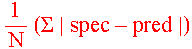
The total error between the measured spectrum and predicted spectrum.
The total number of peaks detected for this spectrum database file.
Peaks is optimized, i.e. the parameters are optimized using special Symath routines without any fitting procedure. In some cases these routines can guess the parameters very well.
The number of peaks fitted for this data file. Each peak has a switch which is set to "fitted" after the FIRST successful fit of the peak.
Click this button to update the FitStatus table. All parameters shown on the PeaklistStatus table are recalculated and shown in a new row of the table.
Click this button to clear the FitStatus table. All entries of the table are first deleted and than the table is updated with the current FitStatus parameters.
Click this button to display a help table for the FitStatus table and processing buttons.
"Working range" section Using the automatic fit and search procedures you can analyze your spectrum. In the utilities section you can do additional manipulation on the spectrum. In all these sections you have in the shown table for each processing task two separate buttons, the first button acts on the selected x axis range and the second acts over the complete spectrum range. In the AnalysisSetUp table you can set up the x axis range where you want to manipulate your spectra using the first of the processing buttons. The AnalysisSetUp table is shown on the next figure.
In the next section there is a description for each table element and processing button of the AnalysisSetUp table.
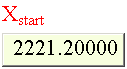
On this input field you can type the x axis coordinate start value of the working range. Only numeric values smaller as the end value are accepted.
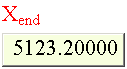
On this input field you can type the x axis codominant end value of the working range. Only numeric values greater as the start value are accepted.
The pointer number of the data point in the spectrum corresponding to the selected x axis start value of the working range.
The pointer number of the data point in the spectrum corresponding to the selected x axis end value of the working range. © 2007 Dr.Georg Ch. Mellau |

![[Graphics:HTMLFiles/index_5.gif]](../../HTMLFiles/index_510.gif)
 than Symath will fit the peaks in the selected range. The result of the analysis is shown on the figure 6.6 .
![[Graphics:HTMLFiles/index_7.gif]](../../HTMLFiles/index_710.gif)
 button of the VisualSystem table. Also you have to make sure that the
  button is switched On. In this case some additional processing buttons are shown on the PlotWindow as shown in figure 6.8 .

 and
and  the user can insert a new peak before or after the selected peak. The new peak is inserted at the "best" insert position between the two peaks. For
the demonstration spectrum shown on the figure 6 we have to insert 3 peaks and set for non-overlapping peaks the line width parameter to Adjust. Than we have
to click the fit button and the simultaneous fit of all 20 peaks using the settings of the PeakList table will start. In the fit 44 parameters are fitted, the other 16 remain
fixed. The PeakListTable after this analysis is as shown on the figure 9 .
the user can insert a new peak before or after the selected peak. The new peak is inserted at the "best" insert position between the two peaks. For
the demonstration spectrum shown on the figure 6 we have to insert 3 peaks and set for non-overlapping peaks the line width parameter to Adjust. Than we have
to click the fit button and the simultaneous fit of all 20 peaks using the settings of the PeakList table will start. In the fit 44 parameters are fitted, the other 16 remain
fixed. The PeakListTable after this analysis is as shown on the figure 9 .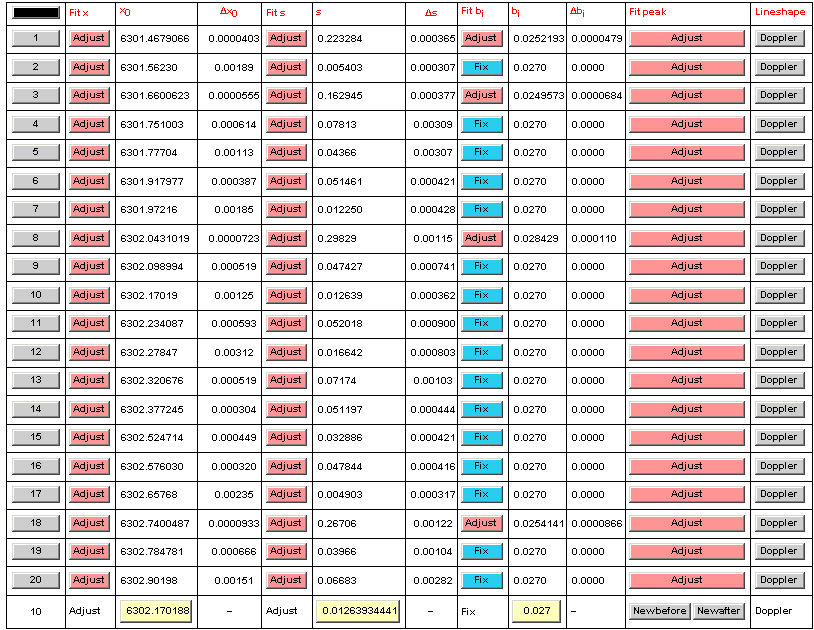
![[Graphics:HTMLFiles/index_15.gif]](../../HTMLFiles/index_154.gif)

 style="vertical-align:middle" />

 Fit only not fitted peaks " width="245" height="70" style="vertical-align:middle" />