 |
 |

Mellau Consulting
 |
 |
 |
 |
 |
 |
 |
 |
 |
Import
|
In this section I will explain how you can load data into the Symath SpectrumFit program, which data formats the program can read and in which data format the program saves the results of the calculations. Symath defines its own spectrum data format. All information related to a spectrum as the measured (x,y) data points, (x,y) data points of the background curve, the list of the peaks found, the lineshape parameters found for each peak, the formula of the lineshape function used to fit the peaks etc... are stored in a single data structure. The data structure is stored in a single file on the computer disk with the default file name extension *.pek. I will call this data structure DataDatabase file or SpectrumDatabase in this manual. You could ask why another data format - aren't there enough data formats with which we have to deal in the everyday spectroscopic work? This database was planned as possible spectroscopic standard throughout the spectroscopic communities and a real success of Symath would be the acceptance of this data format as a standard. You will learn throughout this manual which advantages this new spectroscopic database offers. The database format is partially open i.e. the complete structure is for the user not available but you can write your own applications to access and modify the data in this database. A complete set of write/read functions for each data element are available as part of the Symath system. You are not allowed to change the database format without the permission of Symath developers. The complete description of the write/read functions for the *.pek spectroscopic database file is a separate section of this manual. At this moment only a limited number of spectrum file formats defined by spectrometer manufacturers can be directly imported into Symath. For registered users the Symath developer team is willing to implement the import of any further file format at no cost if the user can supply a complete description of the file format and example data files. Symath always transforms automatically any imported spectrum file format to the Symath own SpectrumDatabase format. Once the SpectrumDatabase is created and saved on the computer disk you have to use this database file for any later analysis. As in any data analysis program the first step which you have to do in Symath is to load or import the spectrum data in the analysis program. The loaded database files are shown in a table called FileList table. This is a table shown at the top of the Symath WorkSheet. In this table the file names of the currently loaded spectrum database files are listed. Beside the file names some additional information is also displayed (the file length in bytes or the number of data points of the spectrum data) for a better description of the input database files. The FileList table for two loaded database files is shown in figure 1. You can load any number of database files in Symath. Each database file has a counting number displayed as a button in the first column of the FileList table. The user can click with this button the mouse. The button can have two states: selected (light red) / not selected (blue). Clicking the button you change the status from selected to not selected or from not selected to selected. The current status is always shown through the button color. If you want to execute some procedure, then the loaded and selected database files are used as input to the procedure, not selected database files (numbering buttons drawn blue) are always ignored. |

Figure 1. The FileList table with the loaded files Demo1.pek and FitDemo2.pek. None of the files are selected so that the numbering buttons are drawn blue.
There are two major types of Symath procedures. Procedures of the first type can have many database files as input, all selected database files are used as input for the procedure. Such procedures are for example the data display functions where all selected database files are drawn on the display window. If on the FileList table shown in figure 1 both database files are selected (e.g. to draw both spectra on the PlotWindow), the table will look like shown in figure 2.

Figure 2. The FileList table with both database files selected. Both database files are selected so that the numbering buttons are drawn light red
The second type of procedures needs a single database file as input. In this case the user has to select only a single database file. To emphasize that only a single database file is selected, the selection button is drawn in dark red as shown in figure 3. All these single input procedures check before starting the calculation if the user really selected only one database file. If more than one database file are selected the procedure stops with an error message.

Figure 3. The FileList table with a single database file selected. The selection button of the selected database file is drawn dark red
In the FileList table for each database file you can select a color. This color is used in any plot to draw the measured spectrum data from this database file. As default all loaded database files have the color black. If you change the color for a database file, the table elements for this database file are drawn in the selected color as shown on the figure 4. The color information is saved in the SpectrumDatabase and is restored any time you reload the database file. The file selection information is also stored in the database file and is restored if you reload the database file. Symath always restores the user interface setting exactly to the same status as it was at the moment when the SpectrumDatabase was saved on the disk.

Figure 4. Two selected spectrum database files with changed color selection.
On the WorkSheet just below the FileList table the Load/Save processing buttons are drawn as shown in figure XXX.XXX . To load a database file into Symath or to import a spectrum file into Symath the user has to click with the
mouse the button  . Symath then will display the FileSelection table where the
user can select the spectrum database file for load or a spectrum file for import.
. Symath then will display the FileSelection table where the
user can select the spectrum database file for load or a spectrum file for import.
The user can type manually the file name and directory or can call the computer operating system own file selection window and browse for the desired database file. In any case Symath will check automatically if the directory and file are accessible and reports any errors to the FileSelection table.

Figure 5. Spectrum Load/Save processing buttons
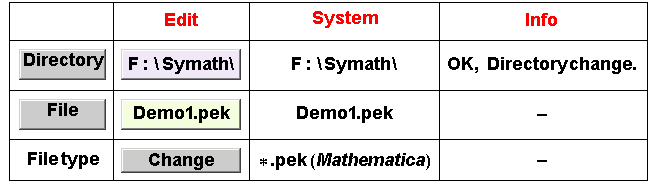
Figure 6. The FileSelection table with selected database file. You can also select spectrum files to import into Symath.
If the user selected a SpectrumDatabase or a spectrum file Symath will try to set up automatically the file format type using the file extension of the filename. The file format type can also be selected manually in the FileSelection table regardless to the file name extension. If the file name extension is conform to the rules stated in this manual, then the file format type will be always automatically set. If all these information are selected the FileSelection table will be as shown in figure 6 . Now you can continue the file loading procedure. For this you have to click the processing buttons just below the FileSelection window as shown in figure 7.

Figure 7. The processing buttons shown with the FileSelection table
In this section you learned how you can load or import spectrum data into Symath and how you can select some of the loaded database files for data processing. Symath defines its own spectrum data format called SpectrumDatabase with the default file name extension *.pek. Symath can also import spectrum files having an other file format and converts them automatically to the SpectrumDatabase *.pek format. The new *.pek file is created in the same directory having the same file name as the imported file but with the file name extension *.pek. If you import the file Demo1.asc after the loading procedure terminates you will find the files Demo.asc and Demo.pek in the same directory (on the computer disk).
FileSelection table
To analyze with SpectrumFit a spectrum you have to load first your database file. You can load any number of SpectrumDatabase files and import spectrum files in various formats. Any imported spectrum file is converted automatically to the Symath own *.pek type SpectrumDatabase format. The loaded or imported files are displayed in the FileList table as shown on the next figure.

The following section lists all table header elements and buttons of the FileList table. A brief description of the supported data formats and of the data loading/saving process can be found in the How it works section of the manual.

Click this button to change the color associated to the spectrum on the plot window. The text color of the database file in the FileList changes to the selected color. Using different colors you can plot different spectra on the same display window. If you plot a single database file, the colors on the plot are predefined : black (or other selected color) for the fit spectrum, red for predicted (simulated) spectrum, blue for the error curve, green for the single lineshape curve and a light blue for measured spectrum. If you select multiple SpectrumDatabases for displaying all these data plots (fit, predicted, error, lineshape and measured spectrum) are shown for a database file using the same color selected by the user.

Click this button to select the spectrum database file for processing. Only the selected database files are used for processing, not selected ones are ignored. If the spectrum database file is selected the numbering button is drawn light red, if it is not selected the button is drawn blue. If a single database is selected the selection color is dark red.

In this column the directory on the file system of the *.pek SpectrumDatabase is displayed.

In this column the file name of the *.pek SpectrumDatabase is displayed.

In this column the file format type (ASCII List, *.DAT, *.1 etc) of the imported spectrum file from which the current *.pek spectrum database file was created is shown. In the first case in which you selected a non *.pek spectrum file as input Symath automatically imported this file and created a *.pek SpectrumDatabase. The data type for the imported input spectrum file is shown in this row. In the second case in which you selected a SpectrumDatabase the *.pek (Mathematica) text informs you at this place that you are continuing the analysis of an already imported and saved SpectrumDatabase. In this case the original file type is no any more shown only the imported file directory and imported file name are displayed in the corresponding columns so that you will know at a glance which imported spectrum file you are processing.

In this column of the current SpectrumDatabase the file length in bytes is shown.

Number of (x,y) data points of the *.pek database. This information is displayed to help the user to identify a given spectrum at a glance. This parameter is also very important if you are converting a spectrum from any spectrum format to *.pek SpectrumDatabase. You should at least for this parameter always check if the number of data points shown in this column is the same with the number of data points you intended to import in the Symath system!

In this column the number of peaks currently present for the spectrum in the SpectrumDatabase is displayed. This information is displayed to help the user to identify a given spectrum at a glance.

Location (directory) on the file system of the original spectrum file from which the current *.pek SpectrumDatabase was created. If you select a non *.pek type spectrum file for input Symath automatically imports this file and creates a SpectrumDatabase. The directory of this original input spectrum file is shown in this row.

File name of the original input spectrum file from which the current *.pek SpectrumDatabase was created. If you select a non *.pek type spectrum file for input Symath automatically imports this file and creates a SpectrumDatabase. The file name for this original spectrum file is shown in this row.
Click this button if you terminated the analysis of the SpectrumDatabase with Symath SpectrumFit. If you click this button, you will be asked if you really want to clear the SpectrumDatabase from the computer memory. You can answer with yes and then Symath will clear the spectrum data from the computer memory and delete the corresponding file entry from the FileList table. You can answer also with No and stop the delete procedure (and eventually first save the database file and than restart the delete procedure). Anyway, you have to know that delete do not saves the SpectrumDatabase under analysis. After you loaded or imported a spectrum database file and analyzed the spectrum the result of the analysis is present only in the computer memory. You have to save your changes in the SpectrumDatabase presently on the computer disk before clicking the delete button. There is only deleted the database whith the name displayed in the row where you clicked the delete button .
FileSelection table processing buttons
The processing buttons i.e to load or import spectrum files, to save the results of the analysis etc. are displayed on the working sheet just below the FileList table as shown on the next figure.

The following section lists all processing buttons of the Spectrum Load/Save section. A brief description of the spectrum load and save process can be found in the How it works section of the manual.
Click this button with the mouse to start the database file loading or the spectrum file importing procedure. A new window will be displayed on the screen with the FileSelection table where you can select the database file or spectrum file which you want to load or import. In this window you also have the opportunity to cancel the loading procedure. In this window, after the file was selected, you must again click the loading button to continue the loading procedure.

Click this button if you terminated the analysis of all SpectrumDatabases with Symath SpectrumFit. If you click this button, you will be asked if you want really clear all SpectrumDatabases from the computer memory. You can answer with yes and than Symath will delete all spectra from the computer memory and also delete all file entries from the FileList table. You can answer also with No and stop the delete procedure ( and eventually first save the databases and than restart the delete procedure ). Anyway you have to know that delete do not saves none of the SpectrumDatabases under analysis. You have to save your changes in the SpectrumDatabases present on the disk before clicking this button

Click this button to save the selected *.pek database files on the computer disk. The save buttons loops for all selected database files and saves them on the computer disk. If no database is selected no saving takes place. Symath will overwrite the current version of the database file on the disk without asking you if you are sure that you want to overwrite the present database file. BEFORE overwriting the present database file Symath will automatically save the data file in a new subdirectory. For example if you want to save the file SpectrumFitDemo1.pek, Symath will create first - if not already present - a subdirectory /Saved/SpectrumFitDemo1/ in the directory where the database file is located. Than Symath will copy the file renamed as SpectrumFitDemo1_5_3_01_12_53.pek in this directory before saving the new version of the database file SpectrumFitDemo1.pek. The string appended to the backup database file name is the datum and time of the saving.

As general rule you have to know that Symath stops the loading/ saving procedure if any errors are reported from the operating system or from the Mathematica system. In some circumstances the *.pek database is really error free but Mathematica reports some errors and the database file loading procedure stops. Clicking this button you can force Symath to load the database file and ignore all errors reported. Additional Info for advanced users : This is usually the case if some expression couldn't be evaluated - and as usual in any algebra system - the complete evaluation expression is returned from a calculation. In this case at a database position where usually a single numeric data as 2.34743 is present now a complete expression is present as a+b. Such cases can cause sever errors. Symath checks very carefully every database position at the loading and saving procedure for unevaluated expressions and reports/corrects such database positions. If any unevaluated expression remains in the database and it is saved on the disk Symath will stop at the next reload of this database with the loading procedure.

Click this button if you want to export the result of the analysis saved in a *.pek spectrum database file as a multicolumn ASCII text file. In the same directory where the *.pek database file is present a new file will be created with the same name and with the file name extension *.txt.

Click this button to display a help table for the Spectrum Load/Save section. On the Symath WorkingSheet a panel with a short description of all buttons and table header elements will be displayed.
FileSelection table
To select a database file for load or a spectrum file for import the FileSelection table is drawn on a window as shown in the next figure.
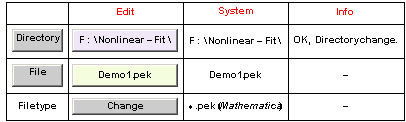 |
The following section lists all table header elements and buttons of the FileSelection table. A brief description of the file selection process can be found in the How it works section of the manual and in the tutorials.

On the input buttons of this column you can manually edit the file location parameters directory and filename.

In this column the name of the directory and file are displayed. These are the filename and directory that will be used if you click the Load processing button and not the one - eventually different - that are displayed on the manually edit buttons. As explained in the SymathUserInterface manual the user input from a Symath input button is transferred to the program only after the user clicked the edited button. So it is necessary to inform the user which user input at a given moment is known to the program.

In this column the Symath messages are displayed while loading or importing database spectra. Symath will check any directory input entered if it is correct and if it is present on the file system. In case a file can't be found or the loading procedure failed the corresponding error message will be displayed. Usually, if for some reason the file you entered can´t be loaded the window with the FileSelection table remains on the screen and you can correct the directory or filename.

In this row the selected file type, i.e. data format is displayed. If the file extension indicates a not supported format, Symath will inform you that you have to set up the data format type manually.

Click this button to call the File browser to select a directory for the file. The usual file browser will be displayed and you can than select a file browsing through the directory structure of your file system. Once returned from the browsing mode Symath will check the selected directory and display the result in the Info column.

Click this button to call the File browser to select a directory AND a file on the file system . The usual file browser will be displayed and you can select a file browsing through the directory structure of your file system. Once returned from the browsing mode Symath will check the selected directory and display the result in the Info column. The directory and filename are shown in the System column using the selection of the file browser.
This button shows the directory of the spectrum to be loaded. The directory name must be typed directly onto the button and is active only after the button is clicked. Symath checks your directory input and displays the result of the check in the Info column. If Symath reports that the directory can´t be found you can reedit your input until Symath reports that the directory you entered is valid.
This button shows the file name of the spectrum to be loaded. The file name must be typed directly onto the button and is active only after the button is clicked. Symath does not check if the file exists, this is done when you click the Load processing button. In case that the file can´t be found Symath reports in the Info column that the file loading failed and you can reedit your input and restart the loading procedure.
Normally the file type is detected automatically from the file extension. In any case you can set the data type clicking this button. After you click this button the type shown on the button changes to a new one. Click the button until the type shown on the button is the right file format type of your spectrum file. The file type parameter MUST always be the correct one, loading a file with an incorrect file type will cause very severe errors. In some of these cases Symath will detect such erro
|



High resolution Fourier-Transform spectroscopy
In version 1.0.2 the *.DAT and *.1 data formats are supported- the usual data format used with a Bruker IFS120 HR instrument. For other instruments you have to convert the data format to an ASCII with two columns. If the ASCII file name extension is *.asc Symath will recognize the file and convert it to the SpectrumDatabase format.
Low resolution Fourier-Transform spectroscopy
In version 1.0.2 the *.DAT and *.1 spectrum file formats are supported - the usual data formats used with a Bruker instrument. For other instruments you have to convert the spectrum file to an ASCII file with two columns. If the ASCII file name extension is *.asc Symath will recognize the file and convert it to the SpectrumDatabase format.
© 2007 Dr.Georg Ch. Mellau