|
 |
Mellau Consulting
 |
 |
 |
 |
 |
 |
 |
 |
 |
Parameters
|
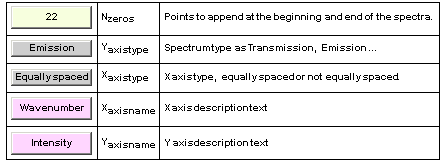
Symath SpectrumFit program accepts any spectrum type as input data. It is necessary to tell the program some features of the input spectrum that are essential for the calculations that the user wants to perform on the spectrum. This is especially necessary if you load a spectrum as a list of x-y data pairs. The spectrum is loaded generally as a curve and no other information as the spectrum itself are contained in the data file. In the current version you have to set up these parameters for all imported spectrum files. In this section you can learn how to set up these spectrum parameters. On the SpectrumFit SymathWorkSheet there are two sections where you have to set up parameters related to the spectrum database file, the first one named "Spectrum Parameters" and the second one named "Lineshape set up". The number of such parameters is kept as small as possible and some of these parameters are shown only if the context makes it necessary ( for example some parameters are shown only if you select the spectrum type transmission, these parameters are related only to spectra of this type ). The first set of parameters that you have to set up before you can start with the analysis of the spectrum is displayed in the section "Spectrum Parameters" on a table as shown in the figure 3.1 . You can set up the parameters editing the input fields or clicking the selection buttons. The table is shown only if a single database file is selected on the FileList table. In this case the parameters of the selected database file are shown on the table. If no database file is selected ( or loaded ) or multiple database files are selected the table will turn to an empty table as shown on the figure 3.2 . The parameters describe the x and y axis type of the spectrum, each of these parameters are explained in a following subsection. The spectrum type parameter and the number of points to append to the spectrum ends parameter MUST be set up before you import a spectrum, this is why these parameter are shown even if no database is selected. In this case the setting of this parameter is used for the next imported spectrum. This is necessary because the program must know when imports a spectrum which zero data points to append, to emission spectra it must append 0.0s but to transmission spectra it must append 1.0s.
Figure 1 The table with the parameters of the "Spectrum Parameters" section.
Figure 2 The table of the "Spectrum Parameters" section if no data file is selected. The second set of parameters are set up in the section "Lineshape set up" and are related to the lineshape of the peaks. The table named LineshapeList with the lineshapes is shown only if a single spectrum database file is selected on the FileList table. In this case the lineshapes of the selected spectrum database file are displayed on table as shown on the figure 3.3 . The parameters describe which type of lineshapes one can use to fit the peaks of the selected SpectrumDatabase. On the LineshapeList shown on the figure 3.3 only a single lineshape was selected and so all peaks of the spectrum can be fitted only using this lineshape. Figure 3 The LineshapeList table with Show attributes button switched Off If in the spectrum there are peaks which fit best to one type of lineshape function and there are other peaks which fit to another lineshape function than the user can define two lineshapes as shown on the figure 3.4 . In this case for each peak found in the spectrum the user can decide which type of lineshape to use for analysis. This can be done manually on the Plot window for each peak or automatically using some user defined criteria. The selected lineshape is stored for each peak and used by automatic or manual fitting. The lineshapeList shown on the figure 3.4 can have any number of lineshapes without limitation and also each lineshape can have any number of parameters.
Figure 4 The LineshapeList table with two selected lineshapes. The first parameter of the list is the lineshape range, the range of the x axis to use for fit around the peakposition parameter x0. This parameter is the same for all
lineshapes used, generally is determined by the most intense peak of the largest lineshape in the spectrum, i.e. the largest peak shape that we have to fit in the
spectrum. For each peak a lineshape curve is stored in the *.pek spectrum database ( green curve on the Plot window ). The x axis length of these curves for each
peak is determined also by this lineshape range parameter. This parameter must be set very carefully to the optimum value. If this parameter is too large and also
the number of peaks found is very large then the calculated lineshape curves stored in the *.pek database for each peak will increase the size of the
SpectrumDatabase very much. So it is very important before starting the analysis to inspect first the complete spectrum and found the largest ( on the x axis ) shape,
measure its x axis dimension and use this value for the lineshape range parameter. You can change this parameter AFTER or DURING the analysis ( if you found
that the single peak shapes - the green curves - are not wide enough or are too wide ), in this case Symath will first recalculate all single lineshapes ( green curves )
with increased or decreased lineshape range and than recalculate the predicted spectrum ( red curve ) and error curve ( blue curve ). For each lineshape a set of
attributes can be defined. The number of attributes depends on the number of parameters defined for the lineshape. Symath will dynamically increase/decrease the
database locations defined for these parameters depending on the number of lineshapes defined and the number of parameters defined for each lineshape. Usually
the attributes are not shown. If you switch the attributes on clicking with the mouse the button
Figure 5 The LineshapeList table with Show attributes button switched On If you define more than one lineshape for the SpectrumDatabase you have to select one of these lineshapes. This is than the "selected lineshape" and this lineshape will be used than for peaks found by the PeakSearch procedures or if you insert manually a peak in the spectrum. In the figure 4 the first Lineshape named Doppler is the selected lineshape. Now if you click with the mouse the lineshape symbol of the second lineshape named Lorentz than you will select this lineshape, the LineshapeList table will change to that shown in the figure 6 .
Figure 6 The LineshapeList table with the second lineshape selected Until now you learned how to set up the parameters related to the lineshapes defined for a SpectrumDatabase and how to select a lineshape for processing. Now
you will learn how to define for a spectrum a new lineshape. If you create a new SpectrumDatabase there is always a default lineshape defined. This default
lineshape and its attributes are defined through a set of functions. These functions can be user defined in the UserExtensionsNotebook. In this manner you can
customize SpectrumFit so that the default lineshape inserted in a new SpectrumDatabase is always your favorite lineshape, probably the most often used lineshape
in your application field. You can delete any lineshape defined for a SpectrumDatabase. Clicking the button Figure 7 The processing buttons for the LineshapeList table. In this section you learned how to set up the parameters related to a spectrum BEFORE starting the analysis. There are 2 sections of the SymathWorkSheet where you have to set up some parameters : The spectrum parameters and the lineshape parameters. You can define any set of lineshapes for a spectrum database file and save this lineshapes in the SpectrumDatabase. For each of the peaks you can define which of the lineshape to use for analysis. For processing buttons that automatically or manually insert new peaks you have to select one of the lineshapes which these procedures will use for each of the new peaks inserted in the SpectrumDatabase.
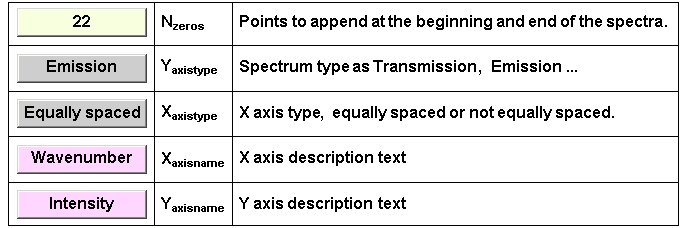
Buttons and table header elements of the "Spectrum Parameters" section Before starting the analysis you have to set up first the spectrum parameters defined in this section. The parameters are shown and can be edited on the SpectrumParameters table as shown in the next figure.
The following section lists all table header elements and buttons of the SpectrumParameters table. A brief description of the set up of all spectrum parameters defined on this table can be found in the How it works section of this chapter.
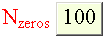
Edit on this input button the number of 0.0 or 1.0 ( transmission spectra ) points to append at the beginning and at the end of the imported spectrum. You can set this parameter to 0, in that case no points will be inserted. To analyze the first and the last peak in the spectrum it is necessary ( in some cases ) to add some data points to the spectrum. For example if your spectrum begins with a peak and for this peak 100 data points are fitted to the lineshape model and before the first peak position only 50 spectrum points are available it is necessary to set this parameter to the value 100. Sure this is necessary only if you want to analyze this first peak. You have to know as a general rule that to analyze a peak there have to be a given x region around the peak position where the spectrum is defined, i.e. there must be enough (x,y) data points defined in the spectrum around the peak position. If you want to use the background correction system you MUST set this parameter to a value greater than 10. In this case the inserted points are needed to define the 4 fixed default background points. Symath will keep the information about the number and position of inserted zero points in the SpectrumDatabase file. All procedures ignore this appended portion, for example the searching procedures will never insert peaks here.
Click this button with the mouse to change the x axis type between equally spaced or not equally spaced. In Symath a spectrum is saved always as list of (x,y) data points. All procedures are implemented to work on ANY list of such data points, the only condition is that the x values have to be in increasing order. Symath can analyze any type of spectra regardless if it is equally spaced or not. Many spectra (as measured with an FT-IR spectrometer) are equally spaced and in this case the many processing functions can find the range of data points corresponding to a given x axis range much quicker if they know a priory that the spectrum is equally spaced or not. This is the only use of this parameter in Symath, if your spectra is equally spaced you should set up this parameter correctly and for example the navigation through the spectrum in the plot window will be speeded up.
Here you can set up the spectrum type. Clicking this button you can loop through all predefined spectrum types. Through this parameter spectrum types which differ basically each from another are defined. For each of these spectrum types exist everywhere in Symath where something is calculated, fitted etc... a separate program code. In this manner any future spectrum type that an user wants to analyze with Symath and for which special program code is necessary can be defined. In this version two different spectrum types are defined : emission and transmission. The spectrum type emission should work for any type of spectra OTHER than transmission where the spectrum to analyze is a detector signal. Transmission spectra are special and need special program code in every processing function.
Here you can edit the x axis description text. You can type any complex expression on the input field. This input field is - as you can see on its color - a string input field and the input must be given as a string. If you forget this, your input will be cleared and the string Error will be displayed.
Here you can edit the y axis description text. You can type any complex expression on the input field. This input field is - as you can see on its color - a string input field and the input must be given as a string. If you forget this, your input will be cleared and the string Error will be displayed.
Click this button to get a help table for SpectrumParameters section. On the SymathWorkSheet a help table will be drawn where each button available in this section will be explained.
Buttons and table header elements of the "Lineshape set up" section Before starting the analysis of the spectrum you have to define the linehapes which you want to use in the analysis. The selected lineshapes with additional attributes are shown on the LineshapeList table shown on the next figure.
The following section lists all table header elements and buttons of the LineshapeList table. A brief description how to define new lineshapes for the selected SpectrumDatabase can be found in the How it works section of this chapter.
This parameter - also named fitrange or lineshape range - defines a range upwards and downwards the x axis from the peak position xz where the lineshape for each peak is defined, i.e in this range the peaks are fitted, in this range the predicted spectrum of each peak ( green curve ) is calculated. It is important to know that only in this range the peak is fitted , the analytical model used to fit each of the peaks is defined only for the data points which are in this region. This is why a peak position during the fit NEVER will go outside the fit region even if a spectrum portion around the peak grater as the fitrange is fitted, a very important feature of SpectrumFit in comparison with other spectrum fitting programs. This parameter also defines the range upward and downwards from the peak position, i.e. the complete fit range itself is twice the value of this parameter. This parameter is the same for all lineshapes used, generally it is determined by the most intense peak of the largest lineshape in the spectrum, i.e. the largest peak shape that you have to fit in the spectrum. If this parameter is too large and also the number of peaks found is very large than the calculated lineshape curves stored in the *.pek database for each peak will increase the size of the database very much. So it is very important before starting the analysis to inspect first the complete spectrum and find the largest ( on the x axis ) shape, measure its x axis dimension and use this value for the lineshape range parameter. You can change this parameter AFTER or DURING the analysis ( if you found that the single peak shapes - the green curves - are not wide enough or are too wide), in this case Symath will first recalculate all single lineshapes ( green curves ) with increased or decreased x axis range and than recalculate the predicted spectrum ( red curve ) and error curve ( blue curve ).
Click this button to select one of the lineshapes defined for the selected SpectrumDatabase. If you define more than one lineshape for the spectrum you have to select one of these lineshapes. The selected lineshape will be used than for peaks found by the PeakSearch procedures or if you insert manually a peak in the spectrum.
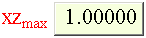
Editing this input field you can change the lineshape function xz parameter min/max attribute. For the peakposition this is defined through the maximum allowed shift during the fit from the xz value which was used as starting value in the fit. This parameter is used only in the fitting mode where the parameter values are forced to stay within a predefined range. The parameter defines the relative peakposition shift and not the absolute lower or upper values for the parameter ( as all other min-max parameters of a lineshape do ).
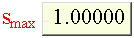
Editing this input field you can change the lineshape function smax parameter, the maximum allowed value during the fit for the lineshape s parameter. The s parameter is used usually for the intensity of the peak.
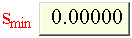
Editing this input field you can change the lineshape function smin parameter, the minimum allowed value during the fit for the lineshape s parameter. The s parameter is used usually for the intensity of the peak.
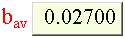
Editing this input field you can change the lineshape function bav parameter, the average value for the lineshape i-th b parameter (first b parameter is used usually for the width of the peak).
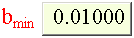
Editing this input field you can change the lineshape function bmin parameter, the minimum allowed value during the fit for the lineshape i-th b parameter (first b parameter is used usually for the width of the peak).
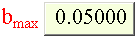
Editing this input field you can change the lineshape function bmax parameter, the maximum allowed value during the fit for the lineshape i-th b parameter (first b parameter is used usually for the width of the peak).
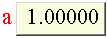
Editing this input field you can change the selected lineshape function a parameter value. If you fit a lineshape containing a type parameters the result will be also shown on this field. All peaks having the same lineshape function defined for a SpectrumDatabase share the same a value.
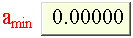
Editing this input field you can change the lineshape function a type parameter minimum value during the fit. All peaks having the same lineshape function defined for a SpectrumDatabase share the same a value.
Editing this input field you can change the lineshape function a type parameter maximum value during the fit. All peaks having the same lineshape function defined for a SpectrumDatabase share the same a value.
Click this button to change the lineshape function a type parameter fit/fix status. All peaks having the same lineshape function defined for a SpectrumDatabase share the same a Adjust/Fix attribute.
Processing buttons of the "Lineshape set up" section The processing button i.e. the buttons to insert/delete lineshapes in the SpectrumDatabase are displayed on the working sheet just below the LineshapeList table as shown on the next figure.
The following section lists all processing buttons of the "Lineshape set up" section. A brief description of the lineshape selection process can be found in the How it works section of this chapter.
Click this button to insert a new lineshape to the list of lineshapes defined for the currently selected SpectrumDatabase. A new LineshapeWindow will be created with the lineshapes of the currently LOADED and SELECTED LineshapeDatabases. You can simply select a lineshape from one of these databases or you can create a completely new lineshape typing in the corresponding input field the formula of the new lineshape.
Click this button to delete the lineshape from the SpectrumDatabase. You can add and delete lineshapes BEFORE, DURING or AFTER the analysis, this is one of the important features of SpectrumFit. If you delete a lineshape and there are in the database peaks using this deleted lineshape, the lineshapes of all peaks defined using the deleted lineshape are changed to the first lineshape defined in the LineshapeList. The parameter database positions present in the SpectrumDatabase are also updated for these peaks using default parameter values according to the number of the parameters of the first lineshape. In this way you can change the lineshape of the peaks without destroying the already found parameters. You can do first an analysis using a simple lineshape and than change the lineshape to a more complicated one where the parameters found using the simple lineshape have the same meaning. Using this feature of SpectrumFit you can solve many complicated peak-analysis tasks which cant be done with no other software.
Click this button if you want to edit the lineshapes of the selected LineshapeDatabase. A new LineshapeWindow will be created with the lineshapes of the selected LineshapeDatabases. In the current version of SpectrumFit you can't edit a lineshape selected for a *.pek spectrum database file. If you want to change a lineshape in a SpectrumDatabase you have to ( eventually delete first the actual one ) make the changes to the lineshape in the LineshapeDatabase and insert the changed lineshape in the SpectrumDatabase. You can have many versions of the same lineshape in a SpectrumDatabase or you can delete the current one before each change. The evaluated parameters for each peak are not changed in the SpectrumDatabase during a lineshape change even if you change the number of the parameters of the lineshape. If the number of parameters of the new lineshape increase over the present number of database locations defined new database location are created.
Click this button to switch between the Show/Don't show status of the lineshape attributes. If the button is switched On, than the LineshapeList table will be extended with additional rows showing the attributes for each lineshape.
Click this button to get a help table for the "Lineshape set up" section. On the SymathWorkSheet a table with help will be shown with a description of all buttons from this section.
Application Notes This section of the manual contains information about the supported lineshapes for different application fields. For each application field a separate subsection can be found. The great advantage od SpectrumFit compared to any other data fitting program is that it supports any lineshape which has an analytical form. For some application fields lineshapes without explicit analytical form are very important. Symath will support some of these lineshape through implemented lineshapes, i.e. lineshapes which the programs exactly knows and supports without any user set up. Also some application field specific information can be found in the following section about the lineshapes generally. Symath is shipped with a default LineshapeDatabase called Default2.lsp. This LineshapeDatabase is automatically loaded at every program start so that you can just start the analysis of your spectrum using these lineshapes. Application specific LineshapeDatabases are also shipped with lineshapes used only in some specific application fields. In this section all these shipped databases are explained and the lineshapes listed. High Resolution Fourier-Transform Spectroscopy In the default LineshapeDatabase named Default2.lsp only the basic lineshapes Doppler, Lorentz and Sinc are installed. Low resolution Fourier-Transform Spectroscopy In the default LineshapeDatabase named Default2.lsp only the basic lineshapes Doppler, Lorentz and Sinc are installed © 2007 Dr.Georg Ch. Mellau |

![{{ 0.5, ΔX_fit, The range around the peak where the spectrum is fitted .}, {sLog[2]/ ... xz))/b[[1]])^2), Lineshape 1, Doppler , lineshape function that ca be used to fit the peaks .}}](../../HTMLFiles/index_37.gif)
![{{ 0.5, ΔX_fit, The range around the peak where the spectrum is fitted .}, {sLog[2]/ ... ^2 + (x - xz)^2), Lineshape 2, Lorentz , lineshape function that ca be used to fit the peaks .}}](../../HTMLFiles/index_41.gif)
 than the LineshapeList table will be
as shown on the figure 3.5 . The attribute parameters can be adjusted manually and concern all peaks with the same lineshape. The parameters are min-max values
to define a range of values where the parameters of all peaks must lie. The peakfitting procedure can be used in 2 different fitting modes. In the first fitting mode the
parameters will change during the fit to any value which gives a smaller overall error between the measured spectrum and the predicted one. In the second fitting
mode the parameter values are forced to stay within a predefined range. This range can be defined by the min-max parameters shown on the LineshapeList table.
Usually these min-max parameters should be defined using the range of physically acceptable values for each parameter. Another set of parameters are default
parameter values which are used when a new peak is inserted in the SpectrumDatabase. The PeakSearch functions can automatically determine a minimum number
of 2 guess parameters as an approximate peak position and peak strength parameter. This is why for the xz and s parameters no default values can be defined, they
can be always guessed. For any other parameter existing in the lineshape formula ( as the lineshape width ) a default value will be used for any new peak, this
default value can be defined on the LineshapeList table for each lineshape and each b type parameter. The a type parameters are shown on the LineshapeList table
- with the show attributes button switched to On -. a type parameters are parameters that are defined in the lineshape formula and for all peaks in the spectrum. A
single parameter value is defined and is used in the fit for all peaks sharing the same lineshape. Such parameters are usually used in lineshapes which model the
effects of the instrument - the same for each peak in the spectrum - on the undisturbed physical lineshape formula. Normally from all these attributes you have to set
up at least the default values for the b type parameters i.e. in the simple case of Doppler or Lorentz lineshapes the average value of lineshape widths. All other
attributes you can ignore as long you use the free fit fitting mode.
than the LineshapeList table will be
as shown on the figure 3.5 . The attribute parameters can be adjusted manually and concern all peaks with the same lineshape. The parameters are min-max values
to define a range of values where the parameters of all peaks must lie. The peakfitting procedure can be used in 2 different fitting modes. In the first fitting mode the
parameters will change during the fit to any value which gives a smaller overall error between the measured spectrum and the predicted one. In the second fitting
mode the parameter values are forced to stay within a predefined range. This range can be defined by the min-max parameters shown on the LineshapeList table.
Usually these min-max parameters should be defined using the range of physically acceptable values for each parameter. Another set of parameters are default
parameter values which are used when a new peak is inserted in the SpectrumDatabase. The PeakSearch functions can automatically determine a minimum number
of 2 guess parameters as an approximate peak position and peak strength parameter. This is why for the xz and s parameters no default values can be defined, they
can be always guessed. For any other parameter existing in the lineshape formula ( as the lineshape width ) a default value will be used for any new peak, this
default value can be defined on the LineshapeList table for each lineshape and each b type parameter. The a type parameters are shown on the LineshapeList table
- with the show attributes button switched to On -. a type parameters are parameters that are defined in the lineshape formula and for all peaks in the spectrum. A
single parameter value is defined and is used in the fit for all peaks sharing the same lineshape. Such parameters are usually used in lineshapes which model the
effects of the instrument - the same for each peak in the spectrum - on the undisturbed physical lineshape formula. Normally from all these attributes you have to set
up at least the default values for the b type parameters i.e. in the simple case of Doppler or Lorentz lineshapes the average value of lineshape widths. All other
attributes you can ignore as long you use the free fit fitting mode.![{{ 0.5, ΔX_fit, The range around the peak where the spectrum is fitted .}, {sLog[2]/ ... 1]]) .}, {Adjust, a, Calibration factor fit/fix status ( lineshape nr . 1, parameter a[[1]]) .}}](../../HTMLFiles/index_61.gif)
![{{ 0.5, ΔX_fit, The range around the peak where the spectrum is fitted .}, {sLog[2]/ ... ^2 + (x - xz)^2), Lineshape 2, Lorentz , lineshape function that ca be used to fit the peaks .}}](../../HTMLFiles/index_71.gif)
 you can delete the last lineshape in
the list. If this is the single lineshape available ( this is always selected automatically ) you can delete it also but you will not be able to do any data processing. To
add a new lineshape to the LineshapeList table, i.e. the lineshapes defined in a SpectrumDatabase you have to click the button
you can delete the last lineshape in
the list. If this is the single lineshape available ( this is always selected automatically ) you can delete it also but you will not be able to do any data processing. To
add a new lineshape to the LineshapeList table, i.e. the lineshapes defined in a SpectrumDatabase you have to click the button  . Than the LineshapeWindow will open and you can select a lineshape from one or more LineshapeDatabases. You can also using the LineshapeWindow define the formula
for a new lineshape. After you edited the lineshape formula and some other attributes you can introduce the new lineshape into the *.pek database. As already
mentioned the lineshape definition (analytical formula, derivatives formula, parameters name etc...) is copied completely into the *.pek database and saved with the
SpectrumDatabase ( there is no link between the LineshapeDatabase and Spectrum Database ). All these lineshape inserting/deleting buttons are displayed just
after the LineshapeList table as shown in the figure 7 How to define new lineshapes and how save them in a special database called LineshapeDatabase can be found in a separate chapter of this manual.
. Than the LineshapeWindow will open and you can select a lineshape from one or more LineshapeDatabases. You can also using the LineshapeWindow define the formula
for a new lineshape. After you edited the lineshape formula and some other attributes you can introduce the new lineshape into the *.pek database. As already
mentioned the lineshape definition (analytical formula, derivatives formula, parameters name etc...) is copied completely into the *.pek database and saved with the
SpectrumDatabase ( there is no link between the LineshapeDatabase and Spectrum Database ). All these lineshape inserting/deleting buttons are displayed just
after the LineshapeList table as shown in the figure 7 How to define new lineshapes and how save them in a special database called LineshapeDatabase can be found in a separate chapter of this manual.



![{{ 0.5, ΔX_fit, The range around the peak where the spectrum is fitted .}, {sLog[2]/ ... 1]]) .}, {Adjust, a, Calibration factor fit/fix status ( lineshape nr . 1, parameter a[[1]]) .}}](../../HTMLFiles/index_182.gif)
 sLog[2]/π^(1/2)/b[[1]] ^(-Log[2] ((a * (x - xz))/b[[1]])^2)" width="260" height="143" style="vertical-align:middle" />