|
 |
Mellau Consulting
 |
 |
 |
 |
 |
 |
 |
 |
 |
Utils
|
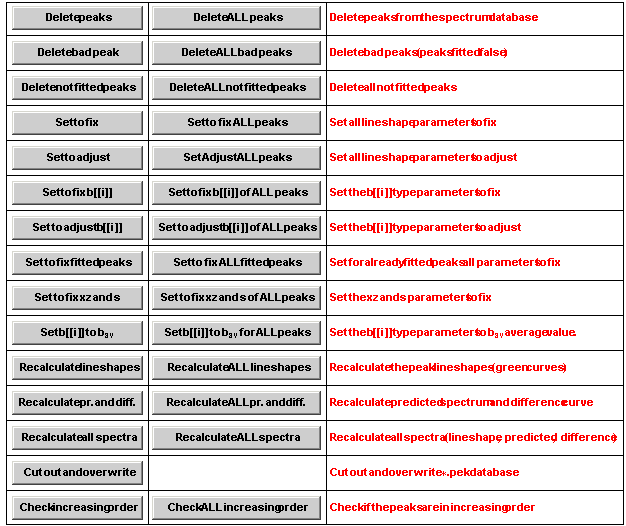
The SpectrumFit has an additional section with utility procedures. These are often needed manipulation functions on different SpectrumDatabase data elements. For each manipulation you have two processing functions : The first one works on the x axis range selected on the AnalysisSetUp table and the second one works on the complete spectrum. The utility processing buttons are organized in a table as shown on the Figure 1 . Using the first three utilities you can delete peaks from the spectrum database. The next six utilities can be used to set the Adjust/Fix switch of the lineshape parameters. You can combine these utilities together to get other combinations of Adjust or Fix settings. Using the next procedure you can reset for example the lineshape widths back to the initial average values. The next three utilities are for predicted spectrum and difference curve update. Usually SpectrumFit will hold all these calculated data sets update i.e. they correspond to the actual set of lineshape parameters stored in the SpectrumDatabase. If you change these parameters through direct database access the data sets will not be anymore up to date, you can use these utilities to recalculate them. Using the Cut Out utility you can create SpectrumDatabases from a present one where in the new SpectrumDatabase only the information about a selected x axis region is saved. The last utility procedure checks if the peaks in the SpectrumDatabase are in increasing order and if not sorts the peaks in increasing order after the xz line position parameter.
Figure 1. UtilitySystem parameters and processing buttons
"Utility functions" section Using the processing buttons of the UtilitySystem you can do some additional manipulations on the spectrum database.
Click this button to delete the peaks with the xz peak position parameter within the x axis range selected on the AnalysisSetUp table.
Click on this button to delete all peaks of the spectrum. Symath will show you first the Are you sure ? window. Here you have the possibility to continue and delete all peaks ( answer yes ) or to cancel the procedure ( answer no ).
Click this button to delete the bad peaks in the selected working range. Bad peaks are defined using the min-max lineshape parameter attributes. The user can control which peak is considered bad and which not using the options in the UserExtensionsNotebook.
Click this button to delete all bad peaks from the spectrum.
Click this button to set all parameters to fix for the peaks which are in the working range, i.e. the peak position parameter xz is within the x axis range defined on the AnalysisSetUp table.
Click this button to set set all parameters to fix for all peaks of the spectrum database.
Click this button to set all parameters to adjust for the peaks which are in the working range, i.e. the peak position parameter xz is within the x axis range defined on the AnalysisSetUp table.
Click this button to set set all parameters to adjust for all peaks of the spectrum database.
Click this button to set the b[[i]] type parameters to fix for the peaks which are in the working range, i.e. the peak position parameter xz is within the x axis range defined on the AnalysisSetUp table.
Click this button to set set the b[[i]] type parameters to fix for all peaks of the spectrum database.
Click this button to set the b[[i]] type parameters to adjust for the peaks which are in the working range, i.e. the peak position parameter xz is within the x axis range defined on the AnalysisSetUp table.
Click this button to set set the b[[i]] type parameters to adjust for all peaks of the spectrum database.
Click this button to set for already fitted peaks all lineshape parameters to fix.. All peaks which are in the x axis range set at the AnalysisSetUp table and have been successfully fitted will be set to fix. You can use this utility to fix the parameters of the successfully fitted peaks for a second automatic fit procedure.
Click this button to set for already fitted peaks all lineshape parameters to fix. All peaks of the spectrum database which have been successfully fitted will be set to fix.
Click this button to set the xz lineshape peak position and s lineshape intensity parameters to fix for the peaks which are in the working range, i.e. the peak position parameter xz is within the x axis range defined on the AnalysisSetUp table.
Click this button to set set the xz lineshape peak position and s lineshape intensity parameters to fix for all peaks of the spectrum database.
Click this button to set all b[[i]] type parameters back to the bav average value for the peaks within the x axis range selected on the AnalysisSetUp table.
Click this button to set all b[[i]] type parameters back to the bav average value for the peaks in the spectrum.
Click this button to recalculate the lineshapes of the peaks in the working range. You can do any manipulations on the lineshape parameters through direct database access. In such cases the lineshape curves present in the database do not reproduce the lineshape curves defined through the set of parameters present in the database. You can click this button to update these curves using the actual set of lineshape parameters.
Click this button to recalculate the lineshapes for ALL peaks in the spectrum database using the actual set of lineshape parameters.
Click this button to recalculate the predicted spectrum ( red curve ) and difference curve ( blue curve ) in the working range.
Click this button to recalculate the predicted spectrum ( red curve ) and difference curve ( blue curve ) in the whole spectrum x axis range.
Click this button to recalculate the lineshape curve for each peak ( green curve ), the predicted spectrum ( red curve ) and difference curve ( blue curve ) in the working range.
Click this button to recalculate the lineshape curve for each peak ( green curve ), the predicted spectrum ( red curve ) and difference curve ( blue curve ) in the whole spectrum x axis range.
Click this button to cut out the x axis range selected on the AnalysisSetUp table. All data sets in the database will be changed in a way so that any information which is outside the selected range will be deleted. The spectrum database loaded in the computers memory will be replaced with the new *.pek database.
Click this button to delete the peaks from the x axis region selected on the AnalysisSetUp table which couldn't be fitted. Each peak has a switch which is set to "fitted" only by a successful fit by one of the PeakFit procedures. If you do automatic fit on a large number of peaks you can use this button to delete the peaks that couldn't be fitted.
Click this button to delete the peaks present in the SpectrumDatabase which couldn't be fitted. Each peak has a switch which is set to "fitted" only by a successful fit by one of the PeakFit procedures. If you do automatic fit on a large number of peaks you can use this button to delete the peaks that couldn't be fitted.
Click this button to check if the peaks are sorted in the SpectrumDatabase in an increasing order after the xz peak position parameter. Symath will check all peaks with the peak position parameter within the x axis range selected on the AnalysisSetUp table. If the peaks are not sorted, Symath will rearrange them.
Click this button to check if the peaks are sorted in the SpectrumDatabase in an increasing order after the xz peak position parameter. Symath will check all peaks of the spectrum database. If the peaks are not sorted, Symath will rearrange them. © 2007 Dr.Georg Ch. Mellau |